Securing a Linux home server
New here? Start here for what my homelab is and how this site is organized.
My home server runs a lot: monitoring, logs, a password manager, a media server. Out of the box, Ubuntu answers anyone on the network who asks, and it lets you log in over SSH with just a password. This guide is the first thing I’d do on any new home server, in the order I’d do it.
You don’t need to be a Linux expert. If you can open a terminal and copy and paste, you can follow it. Plan on about an hour the first time.
What you’ll build
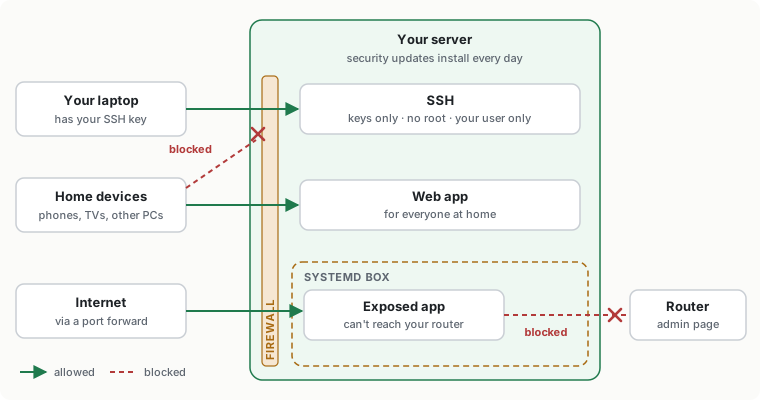
By the end, your server will:
- only accept connections from the devices and on the ports you choose (a firewall),
- install security updates by itself every day,
- only let you log in with a key file from your laptop, never with a password, and never as root,
- keep any app you open to the internet in a “box”, so that if someone breaks into that app, they can’t reach your router or your other machines from it.
What you need
- A server running Ubuntu 26.04 or 24.04 LTS. An old PC or mini PC is fine. You need an account on it that can use
sudo(the account you created when you installed Ubuntu can). - A laptop or desktop on the same home network. Windows, Mac or Linux all work. You’ll use it to log in to the server remotely.
- A keyboard and screen plugged into the server (or the console window, if your server is a virtual machine). If something goes wrong with remote login, this is how you get back in. Have it ready before you start.
How to use this guide
- Where to type. Each grey box says where it runs. “On the server” means a terminal on the server: either sitting at it (press Ctrl+Alt+T on Ubuntu desktop) or logged in remotely with SSH. “On your laptop” means a terminal on your own computer: PowerShell on Windows (search for it in the Start menu), Terminal on Mac, or the terminal on Linux.
- Copy the whole box. Paste it into the terminal and press Enter. Some boxes are several lines long; paste all of them at once.
- Replace the placeholders. Anything in angle brackets, like
<server-ip>, is a value from your own network. Replace the whole thing, brackets included:<server-ip>becomes192.168.10.5, not<192.168.10.5>. It’s easiest to paste the command into a text editor first, fix the values, then copy it into the terminal. - sudo asks for your password. It’s your own login password. Nothing appears on the screen while you type it, not even dots. That’s normal: type it and press Enter.
- “You should see” tells you what a good result looks like. If you see something different, stop and look at “If it doesn’t work” near the end before going on.
Step 0: Find your own values
You’ll need five values. Write them down somewhere, you’ll use them all through the guide.
| Placeholder | What it is | Example |
|---|---|---|
<server-ip> | the server’s address on your network | 192.168.10.5 |
<user> | your username on the server | alex |
<router-ip> | your router’s address | 192.168.10.1 |
<lan> | your whole home network | 192.168.10.0/24 |
<laptop-ip> | your laptop’s address | 192.168.10.40 |
On the server:
hostname -I
whoami
ip route | grep default
The first line prints the server’s address (if it prints several, use the one that starts like your other home devices, usually 192.168. something). The second prints your username. The third prints something like default via 192.168.10.1 dev enp3s0: the address after “via” is your router.
For <lan>, take the router’s address, replace the last number with 0, and add /24. So a router at 192.168.10.1 gives 192.168.10.0/24. That’s right for almost every home network.
On your laptop, find its address:
- Windows: in PowerShell, run
ipconfigand look for “IPv4 Address” under your Wi-Fi or Ethernet adapter. - Mac: in Terminal, run
ipconfig getifaddr en0(Wi-Fi). If that prints nothing, tryen1. - Linux: run
hostname -I.
One important thing: home routers hand out addresses that can change. The firewall rules below are tied to addresses, so if your laptop’s address changes next month, you’ll be locked out of remote login. Open your router’s admin page and give the server and the laptop a fixed address. Routers call it “DHCP reservation”, “static lease” or “fixed IP”. Do this before going on.
Step 1: Turn on automatic security updates
Most break-ins on home servers use bugs that were fixed months ago, on machines that never installed the fix. So first, let the server install security fixes on its own.
On the server:
sudo apt update && sudo apt full-upgrade -y
sudo apt install -y unattended-upgrades
cat /etc/apt/apt.conf.d/20auto-upgrades
The first line downloads the list of available updates and installs them all; it can take several minutes the first time. The second installs the tool that does this automatically from now on (it’s often there already). The third shows its settings.
You should see both lines set to “1”:
APT::Periodic::Update-Package-Lists "1";
APT::Periodic::Unattended-Upgrade "1";
If the last command says “No such file”, or one of the lines says “0”, run this to create the file with the right settings:
printf 'APT::Periodic::Update-Package-Lists "1";\nAPT::Periodic::Unattended-Upgrade "1";\n' | sudo tee /etc/apt/apt.conf.d/20auto-upgrades
From now on the server installs security updates every day. It doesn’t restart by itself, though. Some updates (the Linux kernel, for example) only take effect after a restart, and when that happens a file called /var/run/reboot-required appears. Once a week or so, check for it:
ls /var/run/reboot-required
“No such file or directory” means no restart is needed. If the file is there, restart at a quiet time with sudo reboot.
One warning: this only covers software that comes from Ubuntu. If you install an app from its maker’s own repository later, keep an eye on it. I learned that the hard way: one of my apps had quietly stopped updating for a month because its maker moved their repository. Run sudo apt update now and then and read any errors it prints.
Step 2: Turn on the firewall
A firewall decides who may connect to the server. Ubuntu comes with one called UFW, but it’s switched off. The idea is simple: refuse everything coming in, then open only what you use, and only for the devices that use it.
Each program on a server listens on a numbered “port”. SSH (remote login) uses port 22. A web app might use 8080. If you’re not sure which ports your apps use, this lists everything listening on the server, with the program name at the end of each line:
sudo ss -tlnp
On the server, start with the default rules and allow SSH from your laptop. Do this first, so you don’t lock yourself out when the firewall switches on:
sudo ufw default deny incoming
sudo ufw default allow outgoing
sudo ufw allow from <laptop-ip> to any port 22 proto tcp comment 'SSH from my laptop'
The first line blocks everything coming in. The second lets the server itself reach out (for updates, for example). The third makes the one exception for SSH from your laptop. The comment is just a label so you remember later why the rule is there.
Then add one line for each app other people at home use, from your home network. For example, a web app on port 8080:
sudo ufw allow from <lan> to any port 8080 proto tcp comment 'my web app'
Now switch it on and look at the result:
sudo ufw enable
sudo ufw status verbose
UFW asks Command may disrupt existing ssh connections. Proceed with operation (y|n)?. Type y and press Enter. That’s safe because you already allowed your laptop.
You should see Status: active, then Default: deny (incoming), allow (outgoing), then a list with your rules.
One catch if you use Docker: when a container publishes a port (for example -p 8080:80), Docker opens it around UFW, to everyone. Write -p 127.0.0.1:8080:80 instead, so only the server itself can reach the container, and put a reverse proxy in front of it if other devices need it.
Step 3: Log in with a key instead of a password
Passwords can be guessed, and if someone tries enough of them, eventually one works. A key is a pair of files. The private half stays on your laptop, the public half goes on the server, and logging in proves you have the private half. Nobody can guess it.
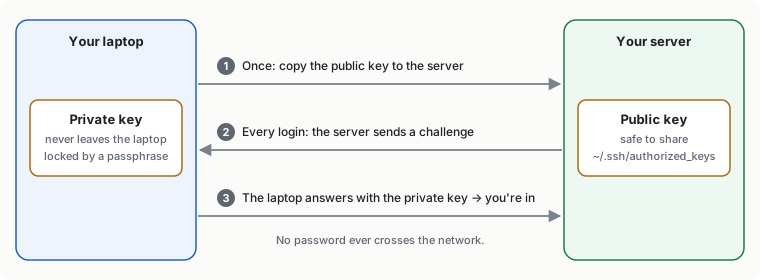
Do this in order: make the key, copy it, test it, and only then turn passwords off. If you turn passwords off first, you lock yourself out.
On your laptop, make the key:
ssh-keygen -t ed25519 -C "my laptop"
It asks three questions. “Enter file in which to save the key”: just press Enter to accept the default. “Enter passphrase”: type a passphrase (a short sentence is good) and press Enter, then type it again. Like sudo, nothing shows while you type. The passphrase protects the key if someone ever copies it off your laptop.
Copy the public half to the server. On your laptop, on Mac or Linux:
ssh-copy-id <user>@<server-ip>
On Windows, PowerShell doesn’t have ssh-copy-id. This one line does the same thing:
type $env:USERPROFILE\.ssh\id_ed25519.pub | ssh <user>@<server-ip> "mkdir -p ~/.ssh && cat >> ~/.ssh/authorized_keys && chmod 700 ~/.ssh && chmod 600 ~/.ssh/authorized_keys"
The first time you connect to the server, you’ll see Are you sure you want to continue connecting (yes/no)?. Type yes and press Enter. Then type your server password. This is the last time you’ll need it for SSH.
Now test it. On your laptop:
ssh <user>@<server-ip>
It should log you in without asking for the server password. It will ask for the key’s passphrase instead, which is what you want. If it still asks for the server password, the key didn’t get copied; go back and run the copy command again.
Leave this window logged in until the end of this step. If anything goes wrong with the next part, this open session is your way back in.
Now, on the server (you can use the window you just opened), look at the SSH settings folder:
ls /etc/ssh/sshd_config.d/
On many Ubuntu installs you’ll see a file called 50-cloud-init.conf. The installer often puts PasswordAuthentication yes in it, which turns password login on. SSH reads the files in this folder in alphabetical order and keeps the first value it finds for each setting. So we put our settings in a file whose name starts with 10-, which comes first and wins.
Remember to replace <user> in the box below with your username:
sudo tee /etc/ssh/sshd_config.d/10-hardening.conf <<'EOF'
PasswordAuthentication no
KbdInteractiveAuthentication no
PermitRootLogin no
AllowUsers <user>
MaxAuthTries 3
X11Forwarding no
EOF
sudo sshd -t && sudo systemctl try-reload-or-restart ssh
sudo sshd -T | grep -E '^(passwordauthentication|permitrootlogin|allowusers)'
What the settings mean, in order: no passwords, no “type a code” logins either, nobody can log in directly as root, only your user may log in at all, three wrong tries and the connection is dropped, and no forwarding of graphical windows (you won’t miss it).
The last two lines check the file for mistakes, apply it, and print the result. You should see:
permitrootlogin no
passwordauthentication no
allowusers <user>
with your real username on the last line. If sshd -t printed an error instead, nothing was applied: read the error, fix the file with sudo nano /etc/ssh/sshd_config.d/10-hardening.conf, and run the last two lines again.
Before you close your open session, open a second terminal on your laptop and log in again with ssh <user>@<server-ip>. If that works, you’re done with this step.
Step 4: Put a box around what you open to the internet
You can skip this step if nothing on your server can be reached from the internet. If you’ve set up port forwarding on your router so friends or family can reach an app from outside (a media server is the usual example), keep reading.
Any app can have a security bug. If yours is reachable from the internet, assume that one day someone will find one. The question is what they can do next. Linux’s service manager, systemd, can put limits around the app without changing the app itself: it can’t change system files, can’t gain extra privileges, and can’t talk to the addresses you forbid, like your router’s admin page.
First, find the name of the app’s service. On the server:
systemctl list-units --type=service --state=running
Look for your app in the list. For example, Jellyfin’s service is called jellyfin.service. In the boxes below, replace every myapp with that name, without the .service part.
Note the app’s current safety score, so you can compare later:
systemd-analyze security myapp.service | tail -1
Now create the box. On the server (replace myapp, and <router-ip>):
sudo mkdir -p /etc/systemd/system/myapp.service.d
sudo tee /etc/systemd/system/myapp.service.d/20-box.conf <<'EOF'
[Service]
NoNewPrivileges=yes
PrivateTmp=yes
ProtectSystem=full
ProtectKernelTunables=yes
ProtectKernelModules=yes
ProtectControlGroups=yes
RestrictSUIDSGID=yes
IPAddressDeny=<router-ip>/32
EOF
sudo systemctl daemon-reload
sudo systemctl restart myapp
This adds an extra settings file next to the app’s own, so app updates don’t overwrite it. In plain words, the settings say: the app can’t give itself more rights than it started with, gets its own private temporary folder, can’t change system programs or settings, can’t load or tweak kernel features, and can’t talk to your router at all. The /32 means “this one address”.
A word on IPAddressDeny: it blocks traffic in both directions. Only list addresses the app never needs: your router, and whole networks where none of its users are (for example, a separate network for your work laptop, written like 192.168.20.0/24). Never list the network your users are on, or they won’t be able to connect.
Now use the app the way you normally do and check it still works. Then look at the score again:
systemd-analyze security myapp.service | tail -1
The number should be lower than before. Don’t expect a great score: on my test server it went from 8.2 to 7.5 and still said “EXPOSED”. That’s fine. The score counts dozens of settings, and most of them would break a typical app. The ones above are safe for almost any app, and the network rule matters most.
Test it
On your laptop, try to log in with a password on purpose:
ssh -o PubkeyAuthentication=no <user>@<server-ip>
You should get Permission denied (publickey). That means passwords are refused.
On the server, check that the network box really blocks the router. These two lines run a quick ping to the router, the first time with the same rule as the box, the second time without it:
sudo systemd-run --wait --pipe -p IPAddressDeny=<router-ip>/32 ping -c1 -W2 <router-ip>
sudo systemd-run --wait --pipe ping -c1 -W2 <router-ip>
The first should fail: 100% packet loss or Operation not permitted. The second should say 0% packet loss.
Last, restart the server once (sudo reboot), wait a minute, and check that everything comes back: log in from your laptop with SSH, run sudo ufw status (it should say active), and use your app. Problems that only show up after a restart are the worst kind to discover months later.
If it doesn’t work
- Locked out of SSH. Go to the server’s keyboard and screen, log in there, and run
sudo rm /etc/ssh/sshd_config.d/10-hardening.conf && sudo systemctl try-reload-or-restart ssh. That turns passwords back on. Usual causes: the key was copied into a different user’s account, there’s a typo inAllowUsers, or your laptop’s address changed (see “One important thing” in Step 0). - SSH still asks for the server password. Run
sudo sshd -T | grep passwordauthenticationon the server. If it saysyes, another file in/etc/ssh/sshd_config.d/comes before yours alphabetically. Rename yours to start with a smaller number, like01-hardening.conf. - An app stopped working after
ufw enable. Runsudo ufw status numberedto see the rules. Add the missing one (Step 2 shows how), from the right device or network. - The boxed app can’t reach the internet or look up names. Run
grep nameserver /etc/resolv.conf. Normally it says127.0.0.53, and name lookups happen outside the box, so the box doesn’t affect them. But some setups (Pi-hole running on the same server, for example) point it straight at the router instead. If you blocked the router in the box, the app can no longer look up any name, and things fail in confusing ways. This one got me: a boxed service on my server quietly stopped working because of it. Fix it by pointing the server at a public DNS server, or by not blocking the router’s address. - The app won’t start with the box on. Run
journalctl -u myapp -e. The last lines usually name the folder it couldn’t write to. Remove one setting at a time from the box file (start withProtectSystem), runsudo systemctl daemon-reload && sudo systemctl restart myappafter each change, and keep the rest.
How to undo it
Each step can be undone on its own:
- Automatic updates:
sudo apt remove unattended-upgrades - Firewall:
sudo ufw disableswitches it off and keeps your rules for later.sudo ufw resetdeletes the rules too. - SSH keys only:
sudo rm /etc/ssh/sshd_config.d/10-hardening.conf && sudo systemctl try-reload-or-restart ssh - The box:
sudo rm -r /etc/systemd/system/myapp.service.d && sudo systemctl daemon-reload && sudo systemctl restart myapp