Monitoring a home server with email alerts
New here? Start here for what my homelab is and how this site is organized.
A home server fails quietly. A disk fills up, a backup service crashes, and nobody notices until something important is missing. One part of my own monitoring once collected nothing for seven weeks, and nothing told me. This guide sets up the monitoring I wish I’d had from day one: graphs of what the server is doing, and an email when something needs you.
It builds on Securing a Linux home server: the firewall from that guide keeps everything here private. If you skipped it, do at least its Step 1 (automatic updates) and Step 2 (firewall) first. Plan on about an hour.
What you’ll build
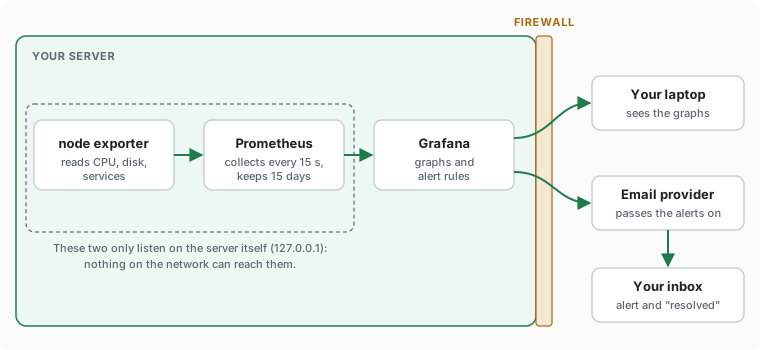
Three free programs, all running on the server:
- node exporter reads the server’s vital signs: CPU, memory, disk space, temperature, network, and which services are running or failed.
- Prometheus asks node exporter for those numbers every 15 seconds and keeps them for 15 days.
- Grafana draws them as graphs in your browser, checks them against rules, and emails you when a rule is broken.
By the end you’ll get an email when:
- a disk is more than 85% full,
- a service on the server has crashed,
- the monitoring itself has stopped. This one matters most: monitoring that dies silently is worse than none, because you trust it.
What you need
- The server from the first guide: Ubuntu 26.04 or 24.04 LTS with UFW turned on, and your laptop allowed to SSH in.
- About 1 GB of free disk space for 15 days of history.
- An email account the server can send from. I use a separate Gmail account just for alerts (Step 4 explains why and how). Any email provider that gives you SMTP settings works.
How to use this guide
Same as the first guide: each grey box says where it runs, copy the whole box, and replace anything in <angle brackets> with your own value, brackets included. You’ll need:
| Placeholder | What it is | Example |
|---|---|---|
<server-ip> | the server’s address | 192.168.10.5 |
<laptop-ip> | your laptop’s address | 192.168.10.40 |
<alerts-email> | the account the server sends from | [email protected] |
<my-email> | where you want to receive alerts | [email protected] |
Step 1: Install Prometheus and node exporter
Both come straight from Ubuntu, so the automatic updates from the first guide keep them patched.
On the server:
sudo apt update
sudo apt install -y --no-install-recommends prometheus prometheus-node-exporter
--no-install-recommends skips about 30 optional extras, including tools for server-room hardware that most home machines don’t have. One of them fails at every boot on a normal PC, which would set off the “service failed” alert you’ll add in Step 5.
Out of the box, both listen on every network address the server has, and they have no password. Your firewall already blocks them from the network, but there’s no reason for them to be reachable from anywhere except the server itself. These lines make them listen only on 127.0.0.1, which means “this machine”. The extra --collector.systemd option lets node exporter report which services have failed, for the second alert:
echo 'ARGS="--web.listen-address=127.0.0.1:9100 --collector.systemd"' | sudo tee /etc/default/prometheus-node-exporter
echo 'ARGS="--web.listen-address=127.0.0.1:9090"' | sudo tee /etc/default/prometheus
sudo systemctl restart prometheus-node-exporter prometheus
Wait 20 seconds, then check:
sudo ss -tlnp | grep -E ':9090|:9100'
curl -s localhost:9090/api/v1/targets | grep -o '"health":"[a-z]*"'
You should see two lines with 127.0.0.1:9090 and 127.0.0.1:9100, and then "health":"up" twice. Ubuntu’s Prometheus is already set up to collect from node exporter and from itself, so there’s nothing else to configure.
Step 2: Install Grafana
Grafana isn’t in Ubuntu’s own software sources, so you add Grafana’s. On the server:
sudo apt install -y apt-transport-https wget gnupg
sudo mkdir -p /etc/apt/keyrings
sudo wget -q -O /etc/apt/keyrings/grafana.asc https://apt.grafana.com/gpg-full.key
sudo chmod 644 /etc/apt/keyrings/grafana.asc
echo "deb [signed-by=/etc/apt/keyrings/grafana.asc] https://apt.grafana.com stable main" | sudo tee /etc/apt/sources.list.d/grafana.list
sudo apt update
sudo apt install -y grafana
The key file lets apt check that the packages really come from Grafana.
Remember the warning in the first guide: automatic updates only cover Ubuntu’s own software. This line adds Grafana’s source to them, so Grafana gets its security fixes too:
echo 'Unattended-Upgrade::Origins-Pattern { "site=apt.grafana.com"; };' | sudo tee /etc/apt/apt.conf.d/51grafana-updates
Grafana also sends anonymous usage statistics to Grafana Labs and checks for updates online. You don’t need either: apt handles updates. These lines turn them off, then start Grafana and make it start at every boot:
sudo tee -a /etc/default/grafana-server <<'EOF'
GF_ANALYTICS_REPORTING_ENABLED=false
GF_ANALYTICS_CHECK_FOR_UPDATES=false
GF_ANALYTICS_CHECK_FOR_PLUGIN_UPDATES=false
EOF
sudo systemctl enable --now grafana-server
Grafana’s web page is on port 3000. Open it in the firewall for your laptop only:
sudo ufw allow from <laptop-ip> to any port 3000 proto tcp comment 'Grafana from my laptop'
Now, on your laptop, open a browser and go to http://<server-ip>:3000. Log in with username admin and password admin. Grafana immediately asks for a new password. Pick a long one and save it in your password manager. Don’t click “Skip”.
A note on that http://: the page isn’t encrypted, so your Grafana password crosses your home network in plain text. With the firewall letting only your laptop in, that’s an acceptable risk at home. If you want it encrypted, put a reverse proxy like Caddy in front of Grafana; that’s a project of its own.
Step 3: Connect Grafana to Prometheus and add a dashboard
Grafana can read settings from files in /etc/grafana/provisioning/. That’s easier to copy than clicking through menus, and it’s easy to back up. On the server, tell Grafana where Prometheus is:
sudo tee /etc/grafana/provisioning/datasources/prometheus.yaml <<'EOF'
apiVersion: 1
datasources:
  - name: Prometheus
    uid: prometheus
    type: prometheus
    access: proxy
    url: http://localhost:9090
    isDefault: true
EOF
sudo chown root:grafana /etc/grafana/provisioning/datasources/prometheus.yaml
sudo chmod 640 /etc/grafana/provisioning/datasources/prometheus.yaml
sudo systemctl restart grafana-server
The last three lines make the file readable by Grafana but not by other users, and restart Grafana so it reads the file.
Now the graphs. You could build your own, but someone has already built a very good one for node exporter, called “Node Exporter Full”. In the browser:
- Click Dashboards in the menu on the left.
- Click New (top right), then Import.
- In the box under “Find and import dashboards for common applications”, type
1860and click Load. - At the bottom, under “Prometheus”, pick Prometheus.
- Click Import.
You should see a page full of graphs: CPU, memory, disk, network. If the top says “No data”, wait a minute and refresh: it needs a few samples first. The dropdowns at the top let you pick the time range; the rows lower down open with more detail.
Step 4: Let Grafana send email
Grafana sends alerts through an email account’s SMTP server, the same way a mail app sends mail. That means the server stores a password for that account. If someone ever broke into the server, they’d have it.
That’s why I use a separate email account just for alerts, not my personal one. The worst case is then someone sending spam from an address nobody cares about.
With Gmail, here’s how to get a password the server can use:
- Create a new Gmail account for the server (for example
[email protected]). - Turn on 2-Step Verification for it: Google Account › Security › 2-Step Verification. Google requires this for the next step.
- Go to myaccount.google.com/apppasswords, type a name like
home server, and click Create. - Google shows a 16-letter password in four groups. Copy it now; you won’t see it again.
This “app password” is only for programs like Grafana that can’t use Google’s normal sign-in page. You can delete it any time from the same page, and changing the account’s main password cancels it too. If the page says app passwords aren’t available, 2-Step Verification isn’t on yet.
On the server, save it in a file only Grafana can read. The first line creates the empty file with the right owner and permissions; the second opens it in an editor:
sudo install -m 640 -o root -g grafana /dev/null /etc/grafana/smtp_password
sudo nano /etc/grafana/smtp_password
Paste the app password without the spaces (16 letters in a row), then press Ctrl+O, Enter, and Ctrl+X to save and close.
Now tell Grafana how to send email. Replace <alerts-email> twice. The password line refers to the file, so the password itself never appears in a settings file:
sudo tee -a /etc/default/grafana-server <<'EOF'
GF_SMTP_ENABLED=true
GF_SMTP_HOST=smtp.gmail.com:587
GF_SMTP_USER=<alerts-email>
GF_SMTP_PASSWORD=$__file{/etc/grafana/smtp_password}
GF_SMTP_FROM_ADDRESS=<alerts-email>
EOF
If you use another provider, change smtp.gmail.com:587 to its SMTP server and port. They list them in their help pages, usually under “SMTP settings” or “set up a mail app”.
Then tell Grafana where to send alerts. Replace <my-email>:
sudo tee /etc/grafana/provisioning/alerting/contact.yaml <<'EOF'
apiVersion: 1
contactPoints:
  - orgId: 1
    name: My email
    receivers:
      - uid: my-email
        type: email
        settings:
          addresses: <my-email>
policies:
  - orgId: 1
    receiver: My email
    group_by: [alertname]
    repeat_interval: 4h
EOF
sudo chown root:grafana /etc/grafana/provisioning/alerting/contact.yaml
sudo chmod 640 /etc/grafana/provisioning/alerting/contact.yaml
sudo systemctl restart grafana-server
repeat_interval: 4h means: if a problem isn’t fixed, remind me every 4 hours, not every minute.
Send a test email. In the browser: menu › Alerting › Notification configuration, tab Contact points. Next to “My email”, click View. Grafana says the contact point “cannot be edited through the UI”: that’s expected, because it comes from your file. Click Test (on the right), then Send test notification. Within a minute you should get an email with “TestAlert” in the subject. Check the spam folder too, and mark it “not spam” if it’s there.
Step 5: Add the alerts
One file holds all three alerts. You don’t have to understand every line: the parts worth knowing are the query (expr), the threshold (gt means greater than, lt less than) and for, which is how long a problem must last before you get an email. That last one stops a two-second spike from waking you up.
On the server:
sudo tee /etc/grafana/provisioning/alerting/rules.yaml <<'EOF'
apiVersion: 1
groups:
  - orgId: 1
    name: server
    folder: Server alerts
    interval: 1m
    rules:
      - uid: disk-almost-full
        title: Disk almost full
        condition: C
        data:
          - refId: A
            relativeTimeRange: {from: 600, to: 0}
            datasourceUid: prometheus
            model:
              refId: A
              instant: true
              expr: '100 - 100 * node_filesystem_avail_bytes{fstype=~"ext4|xfs|btrfs"} / node_filesystem_size_bytes{fstype=~"ext4|xfs|btrfs"}'
          - refId: C
            datasourceUid: __expr__
            model: {refId: C, type: threshold, expression: A, conditions: [{evaluator: {type: gt, params: [85]}}]}
        for: 5m
        noDataState: OK
        annotations:
          summary: "{{ $labels.mountpoint }} is {{ printf \"%.0f\" $values.A.Value }}% full."
      - uid: service-failed
        title: A service failed
        condition: C
        data:
          - refId: A
            relativeTimeRange: {from: 600, to: 0}
            datasourceUid: prometheus
            model: {refId: A, instant: true, expr: 'node_systemd_unit_state{state="failed"}'}
          - refId: C
            datasourceUid: __expr__
            model: {refId: C, type: threshold, expression: A, conditions: [{evaluator: {type: gt, params: [0]}}]}
        for: 5m
        noDataState: OK
        annotations:
          summary: "{{ $labels.name }} has failed. Check it with: systemctl status {{ $labels.name }}"
      - uid: monitoring-stopped
        title: Monitoring stopped
        condition: C
        data:
          - refId: A
            relativeTimeRange: {from: 600, to: 0}
            datasourceUid: prometheus
            model: {refId: A, instant: true, expr: 'up{job="node"}'}
          - refId: C
            datasourceUid: __expr__
            model: {refId: C, type: threshold, expression: A, conditions: [{evaluator: {type: lt, params: [1]}}]}
        for: 5m
        noDataState: Alerting
        execErrState: Alerting
        annotations:
          summary: "Prometheus has had no data from the server for 5 minutes. Check it with: systemctl status prometheus-node-exporter prometheus"
EOF
sudo chown root:grafana /etc/grafana/provisioning/alerting/rules.yaml
sudo chmod 640 /etc/grafana/provisioning/alerting/rules.yaml
sudo systemctl restart grafana-server
In plain words:
- Disk almost full: any real disk (ext4, xfs or btrfs) more than 85% full for 5 minutes.
- A service failed: any systemd service in the “failed” state for 5 minutes.
- Monitoring stopped: Prometheus can’t reach node exporter, or gets no answer at all, for 5 minutes. The
noDataState: Alertingline is the important part: “no data at all” counts as a problem, not as “all quiet”. The other two rules saynoDataState: OK, so a monitoring outage sends you one clear email instead of three confusing ones.
In the browser: menu › Alerting › Alert rules. Open the “Server alerts” folder. After a minute or two, all three rules should say Normal.
Test it
Don’t trust alerts you haven’t seen fire. Two quick tests.
A failed service. This starts a tiny service that fails on purpose. On the server:
sudo systemd-run --unit=alert-test false
sleep 2
systemctl is-failed alert-test
The last line should print failed. Wait about 7 minutes (5 minutes of for, plus up to a minute for each check). You should get an email titled “[FIRING:1] A service failed”, naming alert-test.service. Then clear it:
sudo systemctl reset-failed alert-test
A few minutes later, a “[RESOLVED]” email arrives. That proves the whole chain works: node exporter, Prometheus, Grafana, email.
Monitoring stopped. Stop node exporter:
sudo systemctl stop prometheus-node-exporter
About 7 minutes later you should get “[FIRING:1] Monitoring stopped”. Start it again:
sudo systemctl start prometheus-node-exporter
Last, restart the server once (sudo reboot). When it’s back, open Grafana and check that the graphs carry on and the rules still say Normal. Everything here starts at boot by itself.
If it doesn’t work
- “health”:“down” in Step 1, or “No data” on the dashboard. Run
systemctl status prometheus-node-exporter prometheus. If one isn’t running,journalctl -u prometheus -eshows why. The usual cause is a typo in one of the twoARGSlines; check them withcat /etc/default/prometheus /etc/default/prometheus-node-exporter. - The browser can’t open Grafana. Check that it runs (
systemctl status grafana-server), then the firewall rule (sudo ufw status). Your laptop’s address may have changed since the first guide. - The test email doesn’t arrive. Look at Grafana’s log right after clicking Test:
sudo journalctl -u grafana-server -e | grep -i smtp. “535” or “Username and Password not accepted” means a wrong password: retype it in/etc/grafana/smtp_passwordwith no spaces, thensudo systemctl restart grafana-server. Also check the spam folder. - A rule shows “Error” or isn’t there. Grafana is strict about the indentation in these files. Run
sudo journalctl -u grafana-server -e | grep -i provision; the error names the file and the line. Copying the box again usually fixes it. - “A service failed” fires for a service you don’t care about. Look at it with
systemctl status <name>. If it really doesn’t matter,sudo systemctl disable <name>andsudo systemctl reset-failed <name>stop it from coming back. - Disk alert on a disk that’s meant to be full (a backup drive, for example). Change
fstype=~"ext4|xfs|btrfs"in both places to also say,mountpoint!="/mnt/backup"with your drive’s mount point, then restart Grafana.
How to undo it
- Alerts and email:
sudo rm /etc/grafana/provisioning/alerting/rules.yaml /etc/grafana/provisioning/alerting/contact.yaml && sudo systemctl restart grafana-server. Delete the app password in your Google account too. - Grafana:
sudo apt purge grafana, thensudo rm -r /etc/grafana /var/lib/grafana(purge leaves these behind, including the password file and your dashboards),sudo rm /etc/apt/sources.list.d/grafana.list /etc/apt/keyrings/grafana.asc /etc/apt/apt.conf.d/51grafana-updatesandsudo ufw delete allow from <laptop-ip> to any port 3000 proto tcp. - Prometheus and node exporter:
sudo apt purge prometheus prometheus-node-exporter. This deletes their settings and the stored history too.