Backing up a home server, and proving the restore works
New here? Start here for what my homelab is and how this site is organized.
A backup you’ve never restored is a hope, not a backup. I learned that the polite way: one of my restore tests passed, and only later did I notice that the thing it restored was empty. The test proved the file could be opened. It didn’t prove my data was in it.
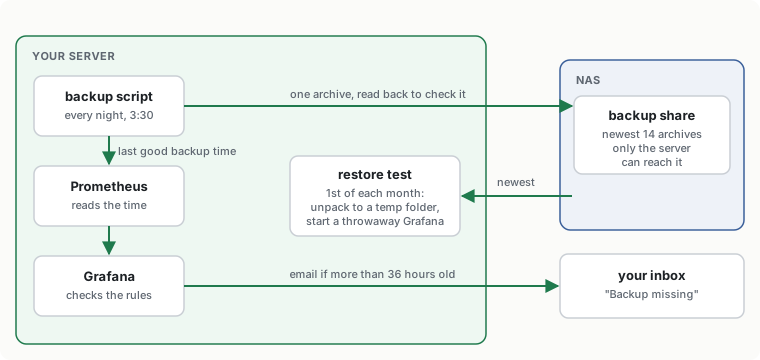
This guide sets up the backups I run on my own server: one archive every night on a NAS, an email if a night is missed, and a test that restores the newest archive every month and emails me if anything is wrong. Then we break something on purpose and get it back.
It builds on the first two guides, Securing a Linux home server and Monitoring a home server with email alerts. The alerts here reuse the monitoring and email from the second one. Plan on about an hour, plus a few minutes of waiting for test emails.
What you’ll build
- A backup share on your NAS that only the server can reach.
- A nightly script that packs the server’s settings and Grafana’s database into one dated archive on that share, checks it, and keeps the newest 14.
- Two alerts: “Backup missing” when there’s been no good backup for 36 hours, and “Backup share almost full”.
- A monthly restore test that unpacks the newest archive somewhere harmless, checks what’s in it, and starts a temporary copy of Grafana from it. If any check fails, you get an email.
What this doesn’t cover. It backs up the server, not the NAS. Your photos and videos on the NAS need their own plan. And one copy inside the house isn’t enough on its own: a fire, a flood or ransomware that reaches the NAS takes the server and its backup together. The usual rule is 3-2-1: three copies, on two kinds of storage, one of them outside the house. This guide gets you the first two. The off-site copy is a project of its own.
What you need
- The server from the first two guides: Ubuntu 26.04 or 24.04 LTS, the firewall on, Prometheus and Grafana running and able to send you email.
- A NAS that can share a folder over NFS. Most home NAS boxes can (Synology, QNAP, UGREEN, TrueNAS and others). No NAS? An external USB disk works too; Step 2 shows how.
- Some free space on the NAS. One archive of settings is usually small, a few MB to a few hundred. Step 4 shows you the real size of yours.
How to use this guide
Same as before: each grey box says where it runs, copy the whole box, and replace anything in <angle brackets> with your own value, brackets included.
| Placeholder | What it is | Example |
|---|---|---|
<server-ip> | the server’s address | 192.168.10.5 |
<nas-ip> | the NAS’s address | 192.168.10.20 |
<nas-folder> | the shared folder’s path on the NAS, as its NFS settings show it | /volume1/server-backup |
Step 1: Make a backup share on the NAS
Every NAS has its own menus, so I’ll describe what to set and why, not where to click. In your NAS’s web page:
- Create a shared folder called
backups. Don’t share it with any user accounts, and hide it from the network if there’s an option for that. Nobody but the server needs to see it. - Turn on NFS for the NAS if it isn’t already. It’s usually under file services.
- Add an NFS rule to the
backupsfolder with these values:- Client / host:
<server-ip>only. Not a whole network, not*. - Access: read/write.
- Squash: the option that keeps root as root. It’s often called “No mapping” or
no_root_squash.
- Client / host:
The first rule means no other device in the house can reach your backups, even if one of them gets infected. The squash setting matters because the backup runs as root and saves files that only root may read. With the more common “map root to guest”, root on the server becomes a nobody on the NAS and can’t set those permissions.
Write down the folder’s path as the NFS settings show it, for example /volume1/server-backup. That’s <nas-folder>.
Two things worth knowing about your NAS. A recycle bin in its web page doesn’t catch files deleted over NFS, and not every NAS keeps snapshots. So the protection here comes from the rule above: only the server can touch the share, and on the server only root can.
Step 2: Mount the share on the server
On the server, install the NFS tools and SQLite (the backup uses it to copy Grafana’s database safely), then check that the NAS offers the folder to you:
sudo apt install -y nfs-common sqlite3
showmount -e <nas-ip>
You should see <nas-folder> in the list, with your server’s address next to it. If you get “access denied” or the folder isn’t listed, recheck the NFS rule from Step 1.
Now make it mount at /mnt/backup at every boot:
sudo mkdir -p /mnt/backup
echo '<nas-ip>:<nas-folder> /mnt/backup nfs defaults,_netdev,nofail 0 0' | sudo tee -a /etc/fstab
sudo systemctl daemon-reload
sudo mount /mnt/backup
sudo chmod 700 /mnt/backup
findmnt /mnt/backup
_netdev tells Ubuntu to wait for the network before mounting. nofail matters more than it looks: without it, a NAS that’s off or slow at boot can leave the whole server stuck at boot. The last line should show /mnt/backup with nfs or nfs4 and the NAS’s address. chmod 700 makes the share’s top folder root-only.
Using a USB disk instead? Plug it in and find it:
lsblk -f
Look for your disk’s partition, for example sdb1, and its UUID. If it already has an ext4 filesystem, use the UUID in place of the NFS line:
sudo mkdir -p /mnt/backup
echo 'UUID=<disk-uuid> /mnt/backup ext4 defaults,nofail 0 2' | sudo tee -a /etc/fstab
sudo systemctl daemon-reload
sudo mount /mnt/backup
sudo chmod 700 /mnt/backup
If the disk is new or formatted for Windows (NTFS or exFAT), it needs an ext4 filesystem first, so that root-only permissions work. Formatting erases everything on it, so double-check the name in lsblk before you run sudo mkfs.ext4 -L backup /dev/<partition>. Everything after this step works the same for a NAS or a disk.
Step 3: Write the backup script
Here’s what goes into each night’s archive:
/etc: almost all of the server’s settings, including the firewall rules, Prometheus and Grafana’s configuration, and the systemd timers./usr/local: anything you installed or wrote yourself, like the scripts in this guide.- Grafana’s database: your dashboards, users and settings made in the browser.
And what stays out, on purpose:
- Secrets. The password hashes in
/etc/shadow, the server’s SSH host keys, and the email app password from the monitoring guide. A backup gets copied to more places over time than the server itself does. Anything secret in it is now in all those places. Each of these is easy to recreate after a restore, and the section on a full rebuild below says how. - Prometheus’s history. It’s just graphs of the past, and it rebuilds itself. If you want it anyway, it’s in
/var/lib/prometheus.
On the server, create the script:
sudo tee /usr/local/sbin/server-backup.sh <<'EOF'
#!/usr/bin/env bash
# Nightly backup: the server's settings and Grafana's database, in one dated archive on /mnt/backup.
set -euo pipefail
umask 077
DEST=/mnt/backup
KEEP=14
NAME=server-$(date +%F).tar.gz
METRIC=/var/lib/prometheus/node-exporter/server_backup.prom

# Never write into an empty folder on the server's own disk
mountpoint -q "$DEST" || { echo "$DEST is not mounted. Nothing was backed up." >&2; exit 1; }

WORK=$(mktemp -d)
trap 'rm -rf "$WORK"' EXIT

# Grafana's database is in use, so ask SQLite for a clean copy instead of copying the file
sqlite3 /var/lib/grafana/grafana.db ".backup '$WORK/grafana.db'"

# Pack everything into one archive. Secrets stay out (see the guide).
rc=0
tar -czf "$DEST/$NAME.partial" \
  --exclude='etc/shadow*' --exclude='etc/gshadow*' \
  --exclude='etc/ssh/ssh_host_*_key' --exclude='etc/grafana/smtp_password' \
  -C / etc usr/local \
  -C "$WORK" grafana.db || rc=$?
# tar exits with 1 when a file changed while it was being read; that's fine. 2 is a real error.
[ "$rc" -le 1 ] || { echo "tar failed with exit code $rc" >&2; exit 1; }

# Read the whole archive back before calling it good
tar -tzf "$DEST/$NAME.partial" > /dev/null
mv "$DEST/$NAME.partial" "$DEST/$NAME"

# Keep the newest $KEEP archives, delete older ones
ls -1t "$DEST"/server-*.tar.gz | tail -n +$((KEEP + 1)) | xargs -r rm --

# Tell Prometheus when the last good backup finished, and how big it was
printf 'server_backup_last_success_timestamp_seconds %s\nserver_backup_size_bytes %s\n' \
  "$(date +%s)" "$(stat -c %s "$DEST/$NAME")" > "$METRIC.tmp"
chmod 644 "$METRIC.tmp"   # umask 077 above would hide it from node exporter
mv "$METRIC.tmp" "$METRIC"

echo "OK: $DEST/$NAME ($(du -h "$DEST/$NAME" | cut -f1))"
EOF
sudo chmod 755 /usr/local/sbin/server-backup.sh
The parts worth understanding:
- The
mountpointcheck. If the NAS is off,/mnt/backupis just an empty folder on the server’s own disk. Without this check, the backup would happily fill that disk and you’d think you had backups on the NAS. .partial, thenmv. A backup that’s cut off halfway (power cut, NAS restart) never gets the real name, so you’ll never restore from a broken file by mistake.tar -tzfreads the whole archive back. If the NAS wrote garbage, the script stops there.- Keep by count, not by age. If backups stop for three weeks and you don’t notice, a rule like “delete anything older than 14 days” would delete your last good ones. Keeping the newest 14, however old, can’t do that.
- The last lines write the time of the last good backup to a small file. Node exporter (from the monitoring guide) reads files in that folder and hands the numbers to Prometheus. That’s how Grafana will know if backups stop.
Step 4: Run it every night
A systemd timer runs the script at 3:30 every night. On the server:
sudo tee /etc/systemd/system/server-backup.service <<'EOF'
[Unit]
Description=Nightly server backup to /mnt/backup

[Service]
Type=oneshot
ExecStart=/usr/local/sbin/server-backup.sh
Nice=10
IOSchedulingClass=idle
EOF
sudo tee /etc/systemd/system/server-backup.timer <<'EOF'
[Unit]
Description=Run the server backup every night

[Timer]
OnCalendar=*-*-* 03:30
RandomizedDelaySec=10min
Persistent=true

[Install]
WantedBy=timers.target
EOF
sudo systemctl daemon-reload
sudo systemctl enable --now server-backup.timer
Nice and IOSchedulingClass=idle keep the backup from slowing down anything else. Persistent=true means that if the server was off at 3:30, the backup runs as soon as it’s back on.
Don’t wait for tonight. Run it once now and look at the result:
sudo systemctl start server-backup.service
journalctl -u server-backup -n 5 --no-pager
sudo ls -lh /mnt/backup
systemctl list-timers server-backup.timer --no-pager
You should see OK: /mnt/backup/server-<today>.tar.gz with its size, the file itself, and the next run at 3:30 (plus up to 10 minutes). Check the size now. If it’s much bigger than you expected, something large is hiding in /etc or /usr/local, and sudo du -sh /usr/local/* /etc/* | sort -h | tail will show you what.
Now let node exporter read the file the script just wrote. In the monitoring guide you replaced node exporter’s settings with your own ARGS line, and that line doesn’t mention this folder yet. This adds it and restarts node exporter:
sudo sed -i 's|^ARGS="\(.*\)"$|ARGS="\1 --collector.textfile.directory=/var/lib/prometheus/node-exporter"|' /etc/default/prometheus-node-exporter
cat /etc/default/prometheus-node-exporter
sudo systemctl restart prometheus-node-exporter
sleep 5
curl -s localhost:9100/metrics | grep ^server_backup
The cat line should show one ARGS line, now ending in --collector.textfile.directory=/var/lib/prometheus/node-exporter. The last command should print two lines, server_backup_last_success_timestamp_seconds and server_backup_size_bytes.
You also get one alert for free: if the backup ever fails, its service ends up “failed”, and the “A service failed” alert from the monitoring guide emails you about it.
Step 5: Get an email when backups stop
The “service failed” alert catches a backup that runs and breaks. It can’t catch a backup that never runs at all, because the timer was turned off or the server was down for days. For that, Grafana checks the age of the last good backup. On the server:
sudo tee /etc/grafana/provisioning/alerting/backup-rules.yaml <<'EOF'
apiVersion: 1
groups:
  - orgId: 1
    name: backup
    folder: Server alerts
    interval: 1m
    rules:
      - uid: backup-missing
        title: Backup missing
        condition: C
        data:
          - refId: A
            relativeTimeRange: {from: 600, to: 0}
            datasourceUid: prometheus
            model: {refId: A, instant: true, expr: '(time() - server_backup_last_success_timestamp_seconds) / 3600'}
          - refId: C
            datasourceUid: __expr__
            model: {refId: C, type: threshold, expression: A, conditions: [{evaluator: {type: gt, params: [36]}}]}
        for: 5m
        noDataState: Alerting
        execErrState: Alerting
        annotations:
          summary: "The last good backup finished {{ printf \"%.0f\" $values.A.Value }} hours ago. Check it with: journalctl -u server-backup -n 20"
      - uid: backup-share-full
        title: Backup share almost full
        condition: C
        data:
          - refId: A
            relativeTimeRange: {from: 600, to: 0}
            datasourceUid: prometheus
            model: {refId: A, instant: true, expr: '100 - 100 * node_filesystem_avail_bytes{mountpoint="/mnt/backup"} / node_filesystem_size_bytes{mountpoint="/mnt/backup"}'}
          - refId: C
            datasourceUid: __expr__
            model: {refId: C, type: threshold, expression: A, conditions: [{evaluator: {type: gt, params: [85]}}]}
        for: 5m
        noDataState: OK
        annotations:
          summary: "The backup share is {{ printf \"%.0f\" $values.A.Value }}% full."
EOF
sudo chown root:grafana /etc/grafana/provisioning/alerting/backup-rules.yaml
sudo chmod 640 /etc/grafana/provisioning/alerting/backup-rules.yaml
sudo systemctl restart grafana-server
Why 36 hours and not 24: the backup runs once a night, so a day and a half means one run has clearly been missed, without false alarms when tonight’s run is a few minutes late.
noDataState: Alerting is on purpose again. If the number is gone completely, so is your proof that a backup ran, and that’s worth an email. The share alert is separate because the disk alert from the monitoring guide only watches the server’s own disks.
In the browser: Grafana menu › Alerting › Alert rules, folder “Server alerts”. After a minute or two, both new rules should say Normal, next to the three from before.
Step 6: Get one file back
This is the restore you’ll actually do most: you changed a setting, it broke something, and you want yesterday’s version. Say it’s /etc/fstab. On the server, unpack just that file from the newest archive into a safe folder, compare, then copy it back:
LATEST=$(sudo sh -c 'ls -1 /mnt/backup/server-*.tar.gz | tail -n 1')
echo "$LATEST"
sudo install -d -m 700 /root/restore
sudo tar -C /root/restore -xzf "$LATEST" etc/fstab
sudo diff /root/restore/etc/fstab /etc/fstab
diff shows what changed: lines starting with < are the backup’s, > are today’s. If no line appears, the two are the same. When you’re sure you want the old one back:
sudo cp -a /root/restore/etc/fstab /etc/fstab
To pick an older day, list them with sudo ls /mnt/backup and set LATEST=/mnt/backup/server-<date>.tar.gz yourself. Note there’s no / at the start of etc/fstab in the tar command: inside the archive, paths start without it.
Step 7: Restore Grafana completely
If Grafana’s database is damaged, or you deleted a dashboard by mistake, you can put back the whole database. Grafana must be stopped while you swap it. On the server:
LATEST=$(sudo sh -c 'ls -1 /mnt/backup/server-*.tar.gz | tail -n 1')
sudo install -d -m 700 /root/restore
sudo tar -C /root/restore -xzf "$LATEST" grafana.db
sudo systemctl stop grafana-server
sudo cp -a /var/lib/grafana/grafana.db /var/lib/grafana/grafana.db.before-restore
sudo install -m 640 -o grafana -g grafana /root/restore/grafana.db /var/lib/grafana/grafana.db
sudo systemctl start grafana-server
The cp line keeps today’s database as grafana.db.before-restore, so you can undo the restore if you picked the wrong day. Anything you changed in the browser since that backup is lost; your alert rules and email settings come back from the files in /etc/grafana/provisioning/ either way.
Step 8: Test the restore every month
Steps 6 and 7 are what you do when something is already broken. You don’t want to find out then that your backups don’t work. This script does a practice restore without touching anything live:
- Takes the newest archive and checks it’s from the last 36 hours.
- Unpacks all of it into a temporary folder.
- Checks that important files are there, and that the secrets are not.
- Checks that Grafana’s database isn’t damaged.
- Starts a throwaway copy of Grafana from the backup on another port, with alerts and email off, and asks it how many dashboards it sees. Zero is a failure. That’s the check I wish my first restore test had: an empty database opens just fine.
On the server:
sudo tee /usr/local/sbin/restore-test.sh <<'EOF'
#!/usr/bin/env bash
# Practice restore of the newest backup. Touches nothing live; cleans up after itself.
set -euo pipefail
DEST=/mnt/backup
WORK=/var/tmp/restore-test
PORT=3999
fail() { echo "FAIL: $*" >&2; echo "$(date '+%F %T') FAIL: $*" >> "$DEST/restore-tests.log"; exit 1; }

mountpoint -q "$DEST" || fail "$DEST is not mounted"
LATEST=$(ls -1 "$DEST"/server-*.tar.gz | tail -n 1)
echo "Testing $LATEST"

# 1. Recent enough?
AGE=$(( ($(date +%s) - $(stat -c %Y "$LATEST")) / 3600 ))
[ "$AGE" -le 36 ] || fail "the newest backup is $AGE hours old"

GPID=""
cleanup() { [ -n "$GPID" ] && kill "$GPID" 2>/dev/null; rm -rf "$WORK"; }
trap cleanup EXIT
rm -rf "$WORK"
install -d -m 700 -o grafana -g grafana "$WORK"

# 2. Does it unpack?
tar -C "$WORK" -xzf "$LATEST" || fail "the archive doesn't unpack"

# 3. Important files in, secrets out?
for f in etc/fstab etc/ufw/user.rules etc/grafana/grafana.ini grafana.db; do
  [ -s "$WORK/$f" ] || fail "$f is missing"
done
for f in etc/shadow etc/grafana/smtp_password; do
  [ ! -e "$WORK/$f" ] || fail "$f should not be in the backup"
done

# 4. Is Grafana's database undamaged?
[ "$(sqlite3 "$WORK/grafana.db" 'PRAGMA integrity_check;')" = ok ] || fail "grafana.db is damaged"

# 5. Does Grafana start from it, and does it see your dashboards?
#    The throwaway copy only listens on this machine and lets anyone in as a viewer, so the script can ask it.
R="$WORK/run"
install -d -m 700 -o grafana -g grafana "$R" "$R/data" "$R/logs" "$R/prov"
install -m 640 -o grafana -g grafana "$WORK/grafana.db" "$R/data/grafana.db"
cd /   # Grafana won't start if it can't read the folder it's started from (sudo leaves you in yours)
runuser -u grafana -- env GF_PATHS_DATA="$R/data" GF_PATHS_LOGS="$R/logs" GF_PATHS_PROVISIONING="$R/prov" \
  GF_SERVER_HTTP_ADDR=127.0.0.1 GF_SERVER_HTTP_PORT=$PORT \
  GF_AUTH_ANONYMOUS_ENABLED=true GF_AUTH_ANONYMOUS_ORG_ROLE=Viewer \
  GF_UNIFIED_ALERTING_EXECUTE_ALERTS=false GF_SMTP_ENABLED=false GF_ANALYTICS_REPORTING_ENABLED=false \
  /usr/share/grafana/bin/grafana server --homepath /usr/share/grafana --config "$WORK/etc/grafana/grafana.ini" \
  > "$R/out.log" 2>&1 &
GPID=$!
for _ in $(seq 1 90); do
  curl -s -m 2 "http://127.0.0.1:$PORT/api/health" | grep -q '"database": *"ok"' && break
  kill -0 "$GPID" 2>/dev/null || break
  sleep 1
done
curl -s -m 2 "http://127.0.0.1:$PORT/api/health" | grep -q '"database": *"ok"' \
  || { tail -n 15 "$R/out.log" >&2; fail "Grafana didn't start from the backup"; }
DASH=$(curl -s -m 5 "http://127.0.0.1:$PORT/api/search?type=dash-db" | grep -o '"type":"dash-db"' | wc -l)
[ "$DASH" -gt 0 ] || fail "Grafana started from the backup, but it has no dashboards"

echo "PASS: $(basename "$LATEST") restores, and Grafana starts from it with $DASH dashboard(s)"
echo "$(date '+%F %T') PASS: $(basename "$LATEST")" >> "$DEST/restore-tests.log"
EOF
sudo chmod 755 /usr/local/sbin/restore-test.sh
sudo /usr/local/sbin/restore-test.sh
It takes about a minute. You should see PASS, with the number of dashboards: at least 1, the one you imported in the monitoring guide. Every result is also added to /mnt/backup/restore-tests.log, so you have a history.
Now let it run by itself on the first of every month. If it ever fails, the “A service failed” alert emails you:
sudo tee /etc/systemd/system/restore-test.service <<'EOF'
[Unit]
Description=Monthly practice restore of the newest backup

[Service]
Type=oneshot
ExecStart=/usr/local/sbin/restore-test.sh
EOF
sudo tee /etc/systemd/system/restore-test.timer <<'EOF'
[Unit]
Description=Practice restore on the first of every month

[Timer]
OnCalendar=*-*-01 05:00
Persistent=true

[Install]
WantedBy=timers.target
EOF
sudo systemctl daemon-reload
sudo systemctl enable --now restore-test.timer
It runs at 5:00, well after the 3:30 backup, so it always tests last night’s archive.
Test it
Three tests, from easiest to the real thing.
The NAS is off. Unmount the share and run the backup:
sudo umount /mnt/backup
sudo systemctl start server-backup.service
systemctl is-failed server-backup
sudo ls -A /mnt/backup
The start command reports that the job failed, is-failed prints failed, and the ls shows nothing: the empty folder on the server’s disk stayed empty. About 7 minutes later you get “[FIRING:1] A service failed” for server-backup.service. Now put it back:
sudo mount /mnt/backup
sudo systemctl start server-backup.service
A successful run clears the failed state, and a few minutes later a “[RESOLVED]” email arrives.
No backup for 36 hours. Pretend the last good backup was long ago:
echo 'server_backup_last_success_timestamp_seconds 0' | sudo tee /var/lib/prometheus/node-exporter/server_backup.prom
About 7 minutes later: “[FIRING:1] Backup missing”, with a very large number of hours. Run the backup again (sudo systemctl start server-backup.service) and it resolves.
A real restore. In Grafana, open Dashboards, tick the box next to “Node Exporter Full”, and click Delete. It’s gone. Now do Step 7. When Grafana is back (give it 20 seconds), refresh the browser: the dashboard is there again, with its graphs.
If it doesn’t work
showmountormountsays “access denied”. The NAS’s NFS rule doesn’t match your server’s address. Check<server-ip>in the rule, and that NFS is on for thebackupsfolder, not just for the NAS.mounthangs, then times out. The NAS isn’t reachable on the NFS port. Check that the NAS is on and that its own firewall allows your server.- “Operation not permitted” or “Permission denied” when the backup writes or
chmodruns. The squash setting maps root to a guest. Set it to “No mapping” orno_root_squash(Step 1), thensudo umount /mnt/backup && sudo mount /mnt/backup. - The backup says “/mnt/backup is not mounted”. Exactly what it should do when the NAS is away. Mount it with
sudo mount /mnt/backup, and if it doesn’t stay mounted after a reboot, check the line in/etc/fstabwithgrep backup /etc/fstab. curlshows noserver_backuplines in Step 4. Check that the file is there and readable by everyone:ls -l /var/lib/prometheus/node-exporter/server_backup.promshould start with-rw-r--r--. If it does, node exporter isn’t reading that folder:cat /etc/default/prometheus-node-exportermust show exactly oneARGSline, containing--collector.textfile.directory=/var/lib/prometheus/node-exporter. Fix it withsudo nano, thensudo systemctl restart prometheus-node-exporter.- “Backup missing” fires right after Step 5. The backup hasn’t succeeded yet, so there’s no time to compare. Run Step 4’s
systemctl startfirst. - The restore test fails on
etc/ufw/user.rules. You skipped the firewall in the first guide, so the file doesn’t exist. Turn the firewall on (better), or remove that name from the list in the script. - The restore test says “Grafana didn’t start”. It prints the last lines of the temporary Grafana’s log. “address already in use” means something else uses port 3999: change
PORT=3999in the script.
Rebuilding after a dead disk
If the server’s disk dies, the archive still has everything you need, but don’t copy /etc from it over a fresh install. A new Ubuntu has newer versions of many of those files. Instead:
- Install Ubuntu and redo the first guide (updates, firewall, SSH).
- Do Step 2 here to mount the share, then unpack the newest archive into
/root/restore. - Reinstall the software from the monitoring guide, then copy back your own files from
/root/restoreone by one, comparing withdiffas in Step 6:/etc/fstablines,/etc/default/*,/etc/grafana/provisioning/,/usr/local/sbin/, the systemd units in/etc/systemd/system/. - Restore Grafana’s database as in Step 7.
- Recreate the secrets that were left out on purpose: a new Gmail app password into
/etc/grafana/smtp_password(monitoring guide, Step 4). The SSH host keys were already made new by the install, so your laptop will warn that the server’s key changed. Remove the old one withssh-keygen -R <server-ip>and connect again.
How to undo it
- The restore test:
sudo systemctl disable --now restore-test.timer, thensudo rm /etc/systemd/system/restore-test.{service,timer} /usr/local/sbin/restore-test.sh. - The backup:
sudo systemctl disable --now server-backup.timer, thensudo rm /etc/systemd/system/server-backup.{service,timer} /usr/local/sbin/server-backup.sh /var/lib/prometheus/node-exporter/server_backup.promandsudo systemctl daemon-reload. To take the folder back out of node exporter’s settings:sudo sed -i 's| --collector.textfile.directory=/var/lib/prometheus/node-exporter||' /etc/default/prometheus-node-exporter && sudo systemctl restart prometheus-node-exporter. - The alerts:
sudo rm /etc/grafana/provisioning/alerting/backup-rules.yaml && sudo systemctl restart grafana-server. - The share:
sudo umount /mnt/backup, delete its line from/etc/fstabwithsudo nano /etc/fstab, andsudo rmdir /mnt/backup. The archives stay on the NAS until you delete thebackupsfolder there.